How to Open SLDPRT Files: A Practical Guide
Unlocking the full potential of your SolidWorks parts requires understanding the SLDPRT file format and knowing which tools can open, view, and convert these files. This guide combines theoretical insights with step by step instructions on how to open SLDPRT files to help engineers and students.

18 Feb, 2026. 16 minutes read
Key Takeaways
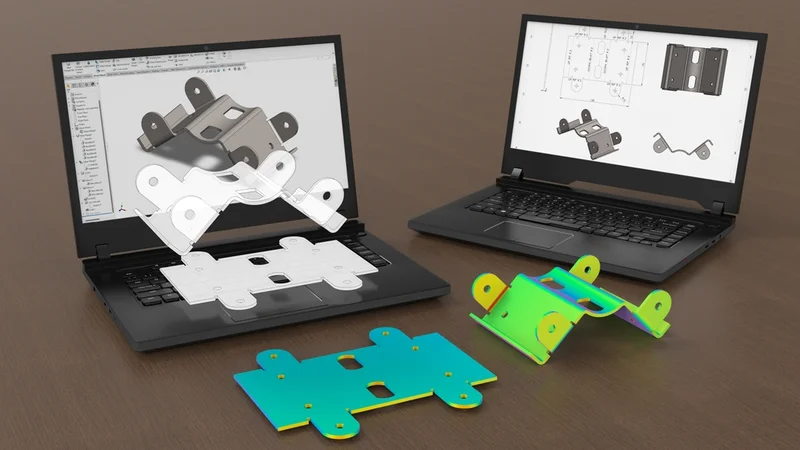
Native format – SLDPRT files are the native part file for SolidWorks. They store 3D part geometry, metadata, and parametric history, and they can be combined into SLDASM assembly files [1].
Multiple programs support the format – You can open SLDPRT files in SolidWorks, eDrawings Viewer, Autodesk Fusion 360, and several other CAD systems. Some programs only allow viewing and not editing [3], [4].
Backward compatibility is built in, forward compatibility is not. Newer versions of SolidWorks can open older SLDPRT files, but older versions cannot open files saved in a newer release without using a neutral format (such as STEP or Parasolid) or a newer-version export workflow [2].
Conversion solves compatibility problems – Converting SLDPRT files to universal formats such as STEP or Parasolid allows them to be opened in older SolidWorks versions or other CAD programs [1], [4].
Visualization without SolidWorks – Free viewers such as eDrawings and third‑party platforms like DWG FastView or Share & Markup enable collaborators to review SLDPRT files without owning SolidWorks [6].
Introduction
SolidWorks is a cornerstone of modern mechanical and electronic design. More than eight million users rely on the software to create components and assemblies. Every part created in SolidWorks is saved with the .sldprt extension [6]. These files contain rich parametric data, including sketches, features, reference geometry, and metadata, which allow parts to be edited and reused in larger assemblies.
In modern product development, where design files move constantly between engineers, suppliers, manufacturers, and students, knowing how to open an SLDPRT file is a practical skill that affects collaboration, manufacturing readiness, and version control.
You might need to understand how to open SLDPRT files when receiving a model from a client, reviewing a supplier’s bracket design, importing geometry into another CAD system, or preparing a part for 3D printing. While opening a file inside SolidWorks is straightforward, challenges arise when working across different software platforms, older software versions, or mobile devices. In these situations, understanding how to open SLDPRT files using viewers, neutral formats, or cloud tools becomes essential.
This guide clearly explains how to open SLDPRT files in SolidWorks, how to access them without a SolidWorks license, and how to convert them for compatibility with other CAD systems and manufacturing workflows.
What Is an SLDPRT File?
An SLDPRT file is a 3D part file created by Dassault Systèmes’ SolidWorks CAD software. Each file represents a single component of a larger product and contains complete geometric definitions as well as parametric history. Multiple SLDPRT files can be assembled into a SolidWorks assembly file (SLDASM) [1]. When a part is modified, those changes propagate to any assemblies that reference it, provided the assembly rebuilds successfully and external references are intact. This parametric linkage ensures consistency across complex designs.
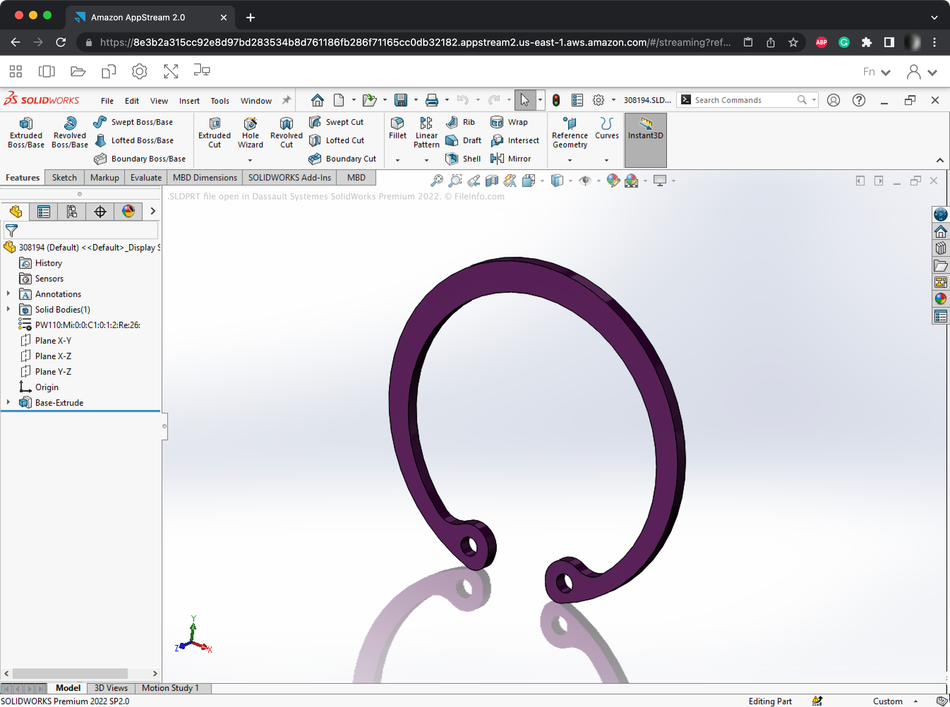
SLDPRT files use a Microsoft Structured Storage container. Within this container, the software stores multiple subfiles: bitmaps for preview thumbnails, metadata about materials and configurations, proprietary binary data, and sometimes cached tessellations for fast visualization. This structure allows SolidWorks to quickly load and regenerate geometry while maintaining a full feature tree. The file format was created in the early 1990s by Jon Hirschtick and his team, who wanted to build an easy‑to‑learn parametric CAD system with an icon‑driven interface. Their innovation revolutionized CAD on Windows and remains central to modern design workflows.
Because SLDPRT files store both geometry and parametric relationships, they support a broad range of analyses. Engineers use them for draft‑angle checks, interference testing, and finite element simulations. The rich data also enables product data management systems (PDM) to maintain version control and ensure that changes propagate across projects. SLDPRT remains one of the most widely used file formats in mechanical design, and understanding its capabilities is critical for anyone involved in digital or hardware engineering.
Key Characteristics of the SLDPRT Format
To effectively work with SLDPRT files, it helps to understand how SolidWorks generates and stores information. Key theoretical concepts include:
Parametric Modeling
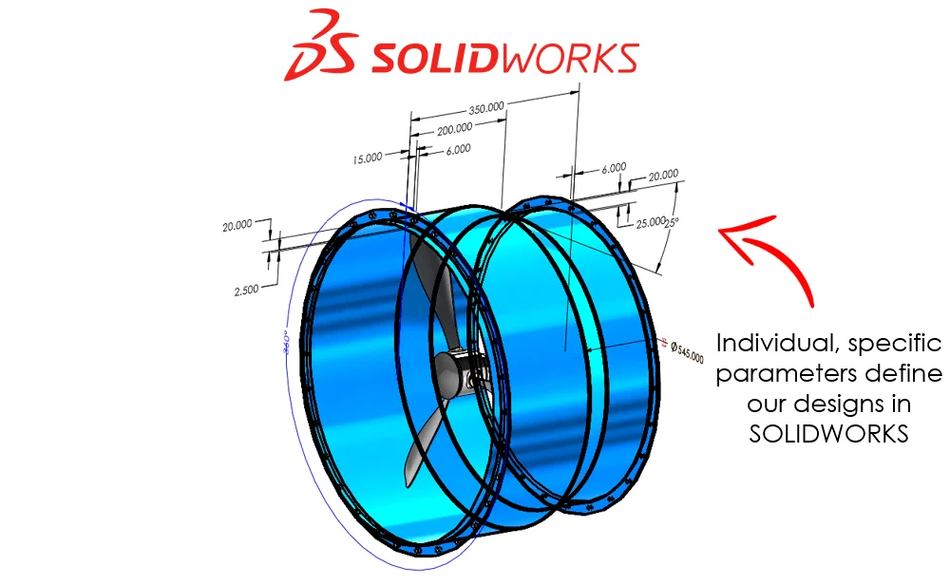
SolidWorks uses a parametric modeling paradigm. Each feature in the FeatureManager design tree is defined by parameters (dimensions, constraints, and equations) that control geometry. This allows engineers to change a dimension and automatically update all related features. When you open an SLDPRT file, SolidWorks reconstructs the model by replaying these features in order. If the file has been converted from another format or imported from a future version, the parametric history may be lost, and the part will appear as an imported body without editable features.
Backward and Forward Compatibility
SolidWorks is backward compatible—meaning a newer version can open files created in older versions—because new releases read older feature definitions. However, it is not forward compatible; older versions cannot open files created in newer releases without conversion. For example, SolidWorks 2022 cannot open a file saved in SolidWorks 2024. Starting with SolidWorks 2024, the software introduced a Save as Previous Release feature that allows saving a part as up to two versions older, provided no new features are used. Engineers must plan version compatibility when collaborating across different releases.
Recommended Reading: Understanding CAD File Types: A Comprehensive Guide for Digital Design and Hardware Engineers
Proprietary Nature and Licensing
SLDPRT is a proprietary format owned by Dassault Systèmes. The specifications are closed, which means third‑party developers must license libraries or reverse‑engineer the format. Some APIs, such as those offered by CAD Exchanger, can read and convert SLDPRT files. Because of its proprietary nature, not all CAD programs can edit SLDPRT files directly; many can only import geometry as static data.
Embedded Metadata and Custom Properties
In addition to geometry, SLDPRT files can store a wide range of metadata that enhances design, manufacturing, and documentation workflows. This includes material properties, such as density or appearance, mass, and center-of-gravity information, part numbers, revision history, and user-defined custom properties. These properties are critical for Bill of Materials (BOM) generation, simulation setups, and automated design workflows, such as linking a part’s material to stress analysis or manufacturing instructions.
Assembly Compatibility
SLDPRT files are designed to work together in assemblies (.sldasm) that define how multiple parts fit and interact. When a part file is modified, SolidWorks automatically updates any assemblies that reference it, maintaining parametric consistency and reducing errors. Assemblies rely on mating relationships (e.g., concentric, coincident, parallel) and inter-part constraints to control how components move and fit together. This associative behavior ensures that even complex products, with hundreds or thousands of components, stay coordinated. Additionally, assembly updates propagate to drawings and linked documentation, meaning that changes in a single part can automatically update dimensions, annotations, and BOMs across the design.
Opening SLDPRT Files in SolidWorks
The most straightforward way to work with SLDPRT files is to use SolidWorks itself. Opening a part in SolidWorks preserves the full feature tree, parametric relationships, and metadata.
Instructions
Launch SolidWorks and go to File > Open.
In the Open dialog, set the file type to SolidWorks Part (.sldprt) or select All files to view any file extension.
Browse to the SLDPRT file and select Open. SolidWorks reconstructs the model using its parametric history.
If the file was created in a newer version and saved using the Save as Previous Release feature, you can open it in an older version, but certain features may be suppressed.
SolidWorks automatically rebuilds an outdated part if it detects that the file was modified inside an assembly. If the model is outdated, a watermark warns the user to rebuild the part for accurate geometry.
Managing Compatibility
When working across versions, follow these best practices:
Check the file version. In Windows Explorer, enabling file name extensions helps differentiate between original files and converted copies.
Use Save as Previous Release. SolidWorks 2024 and later versions allow saving parts as up to two versions older, provided you avoid features introduced in newer releases.
Consider universal formats. If collaborating with someone using an older version (more than two releases back), export the part as a Parasolid (.x_t), STEP (.stp) or IGES (.igs) file. Importing these formats into older versions preserves geometry but loses parametric history.
Enable import diagnostics and Feature Recognition when importing a universal file into an older SolidWorks version. These tools check for broken surfaces and attempt to recreate a feature tree.
Viewing SLDPRT Files Without SolidWorks
Not everyone involved in a product development cycle has access to SolidWorks. Clients, suppliers, and students may still need to view SLDPRT files. Thankfully, several free or low‑cost options exist.
eDrawings Viewer
eDrawings Viewer is Dassault Systèmes’ official free viewer for SolidWorks files. It runs on Windows, macOS, iOS, and Android [4]. According to SolidWorks, eDrawings allows users to open native SolidWorks parts, assemblies, and drawings without a SolidWorks license. The viewer supports viewing of SLDPRT and SLDASM files and displays model dimensions and configurations. To open a file in eDrawings:
Download and install eDrawings from the eDrawings Viewer website. Installation takes only a few minutes.
Launch eDrawings, click File > Open, and choose the file type SolidWorks (.sldprt).
Browse to your SLDPRT file and click Open. The Open dialog shows previews of SolidWorks files saved since 2008.
Use the rotate, pan, and section tools to examine the model. Note that eDrawings is read‑only; you cannot modify the geometry.
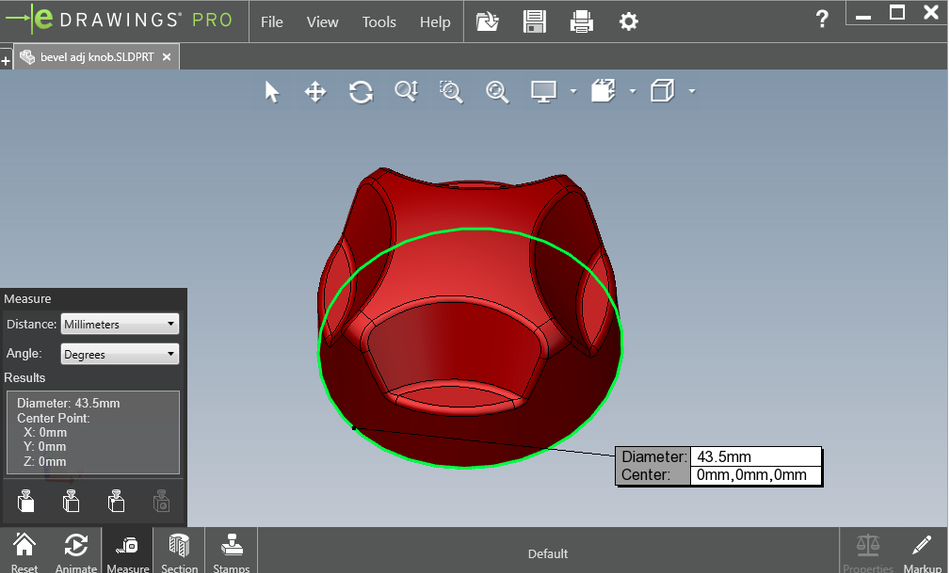
eDrawings also offers Professional and Publisher versions. The professional version adds augmented reality and extended collaboration tools, while the publisher integrates with other CAD systems. For casual viewing, the free version suffices.
Share & Markup via 3DEXPERIENCE Cloud Services
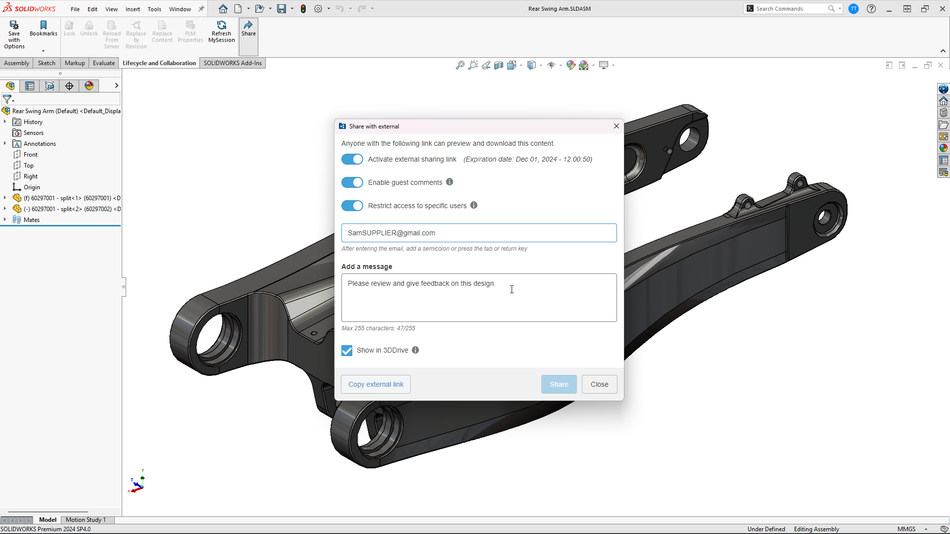
Introduced in 2024, Share & Markup is a browser‑based platform that allows SolidWorks users to share design files via cloud links [2]. By uploading an SLDPRT to the 3DEXPERIENCE platform, you can generate a shareable link and grant view or markup permissions. Recipients do not need to install any software. They can view the model in their browser, add comments, redlines, and annotations, and the original author can review these changes in SolidWorks. Share & Markup integrates seamlessly with SolidWorks cloud services and is included with active subscriptions.
DWG FastView
Although primarily a DWG viewer, DWG FastView supports viewing of SolidWorks part (.sldprt) and assembly (.sldasm) files. This cross‑platform tool allows users to navigate 3D models and annotate them. While convenient, note that DWG FastView does not preserve the full parametric data and may have limitations when interpreting complex features. Use it for quick reviews when SolidWorks or eDrawings is not available.
Third‑party CAD Systems
Other CAD programs can open or import SLDPRT files to varying degrees:
Autodesk Fusion 360: Fusion 360 can import SLDPRT files, but new SolidWorks versions may not be supported immediately. Autodesk notes that files from the newest release may fail to translate; users should export the part from SolidWorks as an IGES or STEP file to import it successfully [3], [6].
Onshape: This cloud‑based CAD tool can import SLDPRT files directly. The imported geometry becomes a non‑parametric “solid body,” so modifications are limited. To retain parametric features, use the SolidWorks FeatureScript importer or re‑model within Onshape.
CAD Exchanger Lab: CAD Exchanger’s desktop application can read SLDPRT files and convert them to over 30 different 3D formats. Engineers can use it to convert parts for use in FreeCAD, Rhino, or other systems.
FreeCAD: FreeCAD does not natively support SLDPRT files due to licensing restrictions, but it can import STEP, IGES, and other universal formats generated from SolidWorks. Engineers often use FreeCAD for open‑source workflows.
Opening SLDPRT Files in Other CAD Programs
When your workflow involves other CAD systems—such as Fusion 360, Onshape, or electronics design platforms—you may need to import or translate SLDPRT files. Here are the practical considerations.
Autodesk Fusion 360
Fusion 360 can open SolidWorks files, but support depends on the file version. Autodesk reports that trying to import a SolidWorks file may yield an error such as “Cannot Open the SLDPRT” when the file format is not yet supported. This occurs when the SLDPRT was created in a newer SolidWorks version than the translator supports. To resolve this:
Export as a different format: In SolidWorks, use File > Save As and choose STEP (.stp) or IGES (.igs). Fusion 360 imports these formats reliably.
Update Fusion 360: Ensure that you are using the latest version of Fusion 360, as translators are updated periodically.
Check license type: Personal‑use licenses support fewer import formats. Fusion’s subscription plans include full SolidWorks file support.
Onshape and other Cloud CAD tools
Onshape lets you import SLDPRT files from your computer or via cloud storage. After import, the file appears as a single part studio. Onshape stores geometry in its own kernel, so parametric features are not transferred. Use the FeatureScript add‑in to recreate features or remodel the part.
Log in to your Onshape account.
From the Documents page, click Create → Import (or upload directly into a document).
Select the .sldprt file.
Wait for Onshape to process the import.
Open the imported file inside a Part Studio.
Other cloud CAD services, such as CAD Navigator or CST CAD Navigator, can convert SLDPRT files into neutral formats like STEP and STL. Always verify that your chosen tool is licensed to read SolidWorks data; unauthorized converters may violate software terms of use.
Forward and Backward Compatibility
One of the most common challenges when working with SLDPRT files is dealing with different SolidWorks versions across a team. Understanding compatibility rules helps avoid file corruption and loss of work.
Backward Compatibility
SolidWorks is designed so that newer versions can open older SLDPRT files. A part created in 2010 will open in SolidWorks 2025 without issue. This backward compatibility is a major advantage because it allows engineers to upgrade their software without compromising old projects. When an older file is opened, SolidWorks rebuilds the model using updated algorithms, which may result in subtle differences; always verify critical dimensions after opening [2].
Forward Compatibility Limitations
Older versions cannot open parts saved in newer SolidWorks releases due to changes in the file format. As CAD Dimensions explains, a file saved in a newer version becomes permanently associated with that release; older versions cannot open it. SolidWorks 2024 introduced a Save as Previous Release capability that allows saving as up to two earlier versions, provided no new features are used. For example, a part created in SolidWorks 2025 can be saved as a 2024 or 2023 part if it does not use features added in 2025. However, older releases, such as 2021, still cannot open the file without conversion. When forward compatibility is required, export the part as a neutral format (STEP, IGES, or Parasolid) and import it into the older version.
Version Identification and Best Practices
Naming conventions: Include the software version in the file name (e.g., mounting_bracket_2025.sldprt) to avoid confusion. Use Windows Explorer to view file extensions and differentiate between original and converted files.
Project planning: Coordinate software versions across teams. When beginning a project, decide on the lowest common SolidWorks version and instruct all collaborators to save as that version.
Archive original files: Keep a copy of the original SLDPRT alongside any converted versions. This ensures that parametric history is preserved for future modifications.
Converting SLDPRT Files to Other Formats
Conversion is often necessary for collaboration with people who do not use SolidWorks or to prepare models for manufacturing. The two main categories of conversions are neutral CAD formats and meshed formats.
Neutral CAD Formats
Neutral formats preserve geometry as analytic surfaces and solids. Common options include:
STEP (.stp): The Standard for the Exchange of Product Data is widely supported across CAD systems. SolidWorks can export SLDPRT files to STEP using File > Save As. STEP retains solid and surface geometry but not parametric history [6].
IGES (.igs): The Initial Graphics Exchange Specification stores surface and curve data. It is less robust than STEP but is supported by older CAD systems.
Parasolid (.x_t, .x_b): Parasolid is Siemens’ geometric modeling kernel used by SolidWorks, NX, and many other programs. Exporting a Parasolid file retains precise geometry and is often recommended for importing into older SolidWorks versions.
ACIS (.sat): The ACIS kernel is used by AutoCAD and other systems. CAD Exchanger can convert SLDPRT files to ACIS, enabling interoperability across applications.
Meshed Formats For Manufacturing and Visualization
Meshed formats approximate surfaces using triangles. They are used for 3D printing, rendering, and finite element analysis.
STL (.stl): The stereolithography format defines a mesh of triangular facets. SolidWorks and many converters can export SLDPRT files to STL. STL files are necessary for most 3D printers, but do not preserve curved surfaces or dimensional accuracy.
OBJ (.obj): A geometry definition file format that stores vertices, faces, and texture coordinates. OBJ is often used in graphics and animation pipelines.
3MF (.3mf): Developed by the 3D Manufacturing Format Consortium, 3MF aims to replace STL by including materials, colors, and textures in a single file. Some converters support exporting SLDPRT files directly to 3MF [5].
Conversion Workflow
Open the SLDPRT file in SolidWorks or another program that can read it.
Choose File > Save As and select the desired output format.
Set export options. For STEP and IGES, choose whether to include 3D curves, surfaces and assembly structure. For STL, specify mesh resolution (coarse, fine or custom).
Validate the exported file by importing it into the target software and checking geometry integrity.
Practical Implementation: Cross‑Platform Workflow
To illustrate how to open and work with SLDPRT files across different tools, consider the following scenarios and step‑by‑step procedures.
Scenario 1: Sharing a design with a vendor who does not use SolidWorks
Goal: Allow the vendor to view and comment on a part without editing capabilities.
Upload to Share & Markup. Open the SLDPRT in SolidWorks and choose Share and Markup from the cloud services menu. Generate a link and send it to the vendor.
The vendor opens the link in a web browser, examines the model, adds comments and markups. They do not need to install any software.
Review feedback. Back in SolidWorks, refresh the markup panel to see the vendor’s comments and address them in your design.
Scenario 2: Collaborating with a colleague using an older SolidWorks version
Goal: Provide your colleague with an editable file when they are using a version older than yours.
Check features. Ensure the part does not use features introduced in your version but absent in theirs (e.g., symmetric linear patterns introduced in 2024). Save as the previous release. In SolidWorks 2024 or later, choose File > Save As and select one of the two previous release options.
Export as Parasolid or STEP. If the colleague’s version is more than two releases older, export the file as Parasolid (.x_t) or STEP (.stp).
Send both files. Provide the colleague with the native part and the neutral format so they can choose the most suitable option. Remind them to run import diagnostics and feature recognition.
Scenario 3: Importing a SolidWorks part into Fusion 360
Attempt direct import. In Fusion 360, choose Upload and select the SLDPRT file. If the file opens successfully, proceed to edit.
Handle translation failure. If Fusion shows a “Cannot Open the SLDPRT” error due to version incompatibility, return to SolidWorks and export the part as STEP or IGES.
Re‑upload the neutral file. Import the STEP or IGES file into Fusion. The geometry will be imported as a solid body; parametric features will not be present.
Update Fusion. If translation fails, check for updates or use another neutral format.
Scenario 4: Viewing SLDPRT files on mobile devices
eDrawings Mobile. Download the eDrawings app on iOS or Android. Use it to open, pan, and rotate SLDPRT files on the go.
Augmented reality. eDrawings Professional includes AR capabilities, enabling engineers to visualize parts in a real‑world context. This is useful for checking fit and ergonomics with hardware enclosures or PCBs.
Applications and Use Cases in Digital and Hardware Engineering
SLDPRT files play a central role across design disciplines. Understanding how to open and manage them benefits engineers in several domains.
Electronics Packaging and Enclosure Design
Electronics engineers often design PCB enclosures and component housings. Working with mechanical engineers who use SolidWorks requires exchanging SLDPRT files. Using eDrawings or Share & Markup allows electronics teams to review mechanical constraints, ensuring that connectors align correctly and heat sinks have sufficient clearance.
Digital Design for Additive Manufacturing
When preparing parts for 3D printing, engineers often convert SLDPRT files to STL or 3MF. Converting SLDPRT to STL is straightforward in SolidWorks or AutoCAD 360 and is essential for 3D printing. Engineers should adjust mesh resolution to balance file size and surface quality. When printing functional parts, such as brackets or sensor housings, maintain critical tolerances by exporting at a fine resolution.
Simulation and Analysis
SLDPRT files integrate fully with simulation tools in SolidWorks, enabling static, dynamic, and thermal analysis. These simulations inform design decisions early, reducing the need for physical prototypes. For example, a hardware engineer might use SolidWorks Simulation to run a modal analysis on a chassis to ensure vibration modes do not interfere with sensitive electronics.
Collaborative Product Development
Modern product development often involves distributed teams. The ability to open and review SLDPRT files without owning SolidWorks fosters collaboration. Tools like Share & Markup, eDrawings, and DWG FastView allow stakeholders—including suppliers, clients, and students—to provide feedback without editing the model. This accelerates design reviews and reduces miscommunication.
Best Practices for Managing SLDPRT Files
Effective file management prevents data loss and streamlines collaboration.
Use Product Data Management (PDM) Systems
For teams working on multiple revisions, a PDM system ensures that SLDPRT files remain version‑controlled. It tracks changes, manages check‑in/check‑out, and prevents duplicate file names. The metadata stored within SLDPRT files integrates with PDM, enabling search and retrieval by material, project, or configuration.
Adopt Naming Conventions
Include descriptive information such as project, part number, revision, and SolidWorks version in the file name (project_part_revA_2025.sldprt). This helps collaborators identify appropriate files and reduces the risk of opening the wrong version.
Archive and Document Conversions
Whenever you convert a part to a neutral format, keep the original SLDPRT file. Document the conversion settings (e.g., mesh resolution for STL). This record simplifies troubleshooting if issues arise during manufacturing or simulation.
Ensure Data Security
SLDPRT files often contain proprietary designs. When sharing via cloud services, enforce access controls. With Share & Markup, you can specify whether recipients can only view or also annotate the file. Avoid sending sensitive parts via unsecured email attachments.
Conclusion
SLDPRT files are integral to mechanical and electronic product development. As the native SolidWorks part format, they store parametric geometry, metadata, and rich simulation data. Engineers can open these files in SolidWorks to edit features, or use free viewers like eDrawings for quick inspection. Cloud services such as Share & Markup simplify collaboration by allowing anyone to view models in a browser. When dealing with different SolidWorks versions, remember that backward compatibility is supported while forward compatibility requires saving as a previous release or exporting to neutral formats. Converting to STEP, IGES, or Parasolid enables interoperability with other CAD programs and ensures that parts can be manufactured or analysed outside of SolidWorks. By following the practical workflows and best practices presented here, digital design engineers, hardware engineers, and students can confidently open, share, and manage SLDPRT files across diverse platforms.
FAQ
What is an SLDPRT file?
An SLDPRT file is a 3D part file created by Dassault Systèmes SolidWorks. It stores the geometry, parametric history, and metadata of a single part. SLDPRT files can be combined into SLDASM assemblies and are widely used in mechanical design.
How can I open an SLDPRT file without SolidWorks?
You can use free viewers such as eDrawings Viewer, which opens native SolidWorks parts, assemblies, and drawings on Windows, Mac, iOS, and Android. Alternatively, cloud platforms like Share & Markup let you view and annotate SLDPRT files in a browser. Third‑party tools like DWG FastView also support viewing SLDPRT and SLDASM files.
Can I edit an SLDPRT file in Autodesk Fusion 360?
Fusion 360 can import SLDPRT files, but translation may fail if the file comes from a newer SolidWorks version. In those cases, export the part from SolidWorks as STEP or IGES and import that file into Fusion. The imported geometry will be static; you cannot access the original feature tree.
How do I open a future version SLDPRT file in an older SolidWorks version?
Older SolidWorks versions cannot directly open files saved in newer releases. Starting with SolidWorks 2024, you can use Save as Previous Release to save a part as up to two versions older. For versions more than two releases apart, convert the file to a neutral format such as Parasolid or STEP.
What formats can I convert an SLDPRT file to?
SolidWorks and other tools can convert SLDPRT files to many formats. Common neutral formats include STEP, IGES, Parasolid and ACIS, which preserve precise geometry. For 3D printing and visualization, convert to STL or OBJ.
Are SLDPRT files backward compatible?
Yes. Newer versions of SolidWorks can open SLDPRT files created in older versions. However, forward compatibility is limited: older versions cannot open parts saved in newer releases without conversion.
Why do some programs only allow viewing of SLDPRT files?
SLDPRT is a proprietary format. Programs without a SolidWorks kernel or licensed API can often only extract tessellated geometry, which allows viewing but not editing. For full editing capabilities, you need SolidWorks or a tool that can convert the file into another editable format.
How do SLDPRT files integrate with 3D printing workflows?
To prepare a part for 3D printing, convert the SLDPRT file to a mesh format such as STL. When exporting, adjust mesh resolution to balance file size and surface fidelity. After conversion, import the STL file into your slicing software and configure print parameters.
References
[1] Dassault Systèmes, SOLIDWORKS Help – Supported File Types, 2024. [Online]. Available:
https://help.solidworks.com/2024/English/SolidWorks/sldworks/c_supported_file_types.htm
[2] Dassault Systèmes, SOLIDWORKS Help – Save as Previous Release, 2024. [Online]. Available:
https://help.solidworks.com/2024/English/SolidWorks/sldworks/t_save_as_previous_release.htm
[3] Autodesk, Fusion 360 – Supported File Formats, 2024. [Online]. Available:
https://help.autodesk.com/view/fusion360/ENU/?guid=Supported_File_Formats
[4] Dassault Systèmes, eDrawings – Supported File Types, 2024. [Online]. Available:
https://help.solidworks.com/2024/English/eDrawings/c_supported_file_types.htm
[5] 3MF Consortium, 3MF Core Specification, 2023. [Online]. Available:
https://3mf.io/specification/
[6] ISO, ISO 10303-21: Industrial automation systems and integration — STEP file format, 2016. [Online]. Available:
https://www.iso.org/standard/63141.html
in this article
1. Key Takeaways2. Introduction3. What Is an SLDPRT File?4. Key Characteristics of the SLDPRT Format5. Opening SLDPRT Files in SolidWorks6. Viewing SLDPRT Files Without SolidWorks7. Opening SLDPRT Files in Other CAD Programs8. Forward and Backward Compatibility9. Converting SLDPRT Files to Other Formats10. Practical Implementation: Cross‑Platform Workflow11. Applications and Use Cases in Digital and Hardware Engineering12. Best Practices for Managing SLDPRT Files13. Conclusion14. FAQ15. References